
Extend a VPS disk
Extend a VPS disk on a live system
⚠ Resizing any live partition without unmounting it first comes with a tremendous risk of losing data, thus it is not recommended. The proper method is to unmount the partition and resize it while booted into rescue CD OpenBSD has no solution yet, please read the dedicated item
In the panel, select the new size and confirm

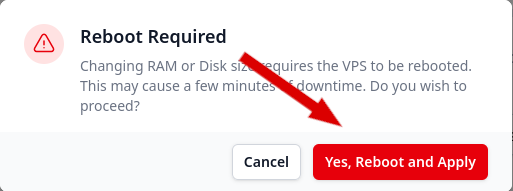
After reboot
For Alpine linux
Find the partition to extend using df
df -h | grep '/$' | awk '{ print $1}'
Check the new partition set a test on next boot and reboot (vda in the example bellow, change regarding the result of the previous command)
resize2fs -f /dev/vda
To check the new partition set a test on next boot and reboot
touch /forcefsck
reboot
After the next reboot the system is checked and safe.
All in one:
resize2fs -f $(df -h | grep '/$' | awk '{ print $1}')
touch /forcefsck
reboot
For Debian or OpenSUSE linux
Using Debian, the process is automatic.
For Arch linux, RedHat like (Alma, CentOS, Fedora, Rocky), Ubuntu linux
Locate the disk device name (/dev/vdx) and the partition number hosting / (/dev/vda and 4 in that example)
lsblk
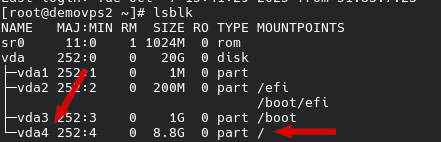
To collect only the / partition:
lsblk | grep '/$'
Using system tools (recommended)
Run the command bellow (update the information according to your partitioning, vda + 4 in that example)
growpart /dev/vda 4 && resize2fs /dev/vda4
Using fdisk (not recommanded)
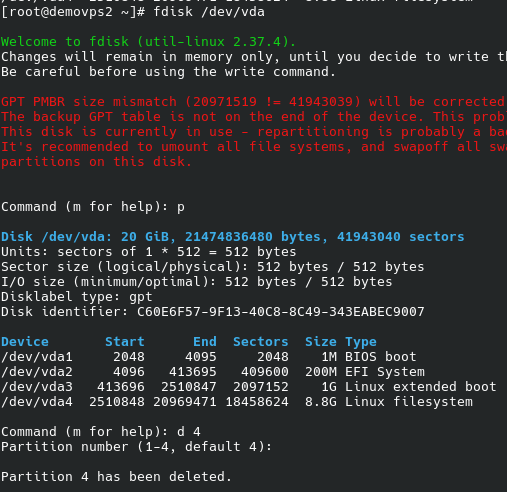
Enter the disk partitioner using the disk device name
fdisk /dev/vda
You can enter p to print the disk information and confirm this is the correct one.
Delete the partition containing / (4 in that example, change according to your partitioning)
d
4
Create a new partition for / (4 in that example, change according to your partitioning)
n
4
<press return>
<press return>
A red message might appear asking if you want to keep the original signature, enter N for no
N

Enter w for saving the changes
w
Now the partition is extended.

Optional but recommended.
To check the new partition set a test on next boot and reboot
touch /forcefsck
reboot
After the next reboot the system is checked and safe.
FreeBSD
Locate your zfs root partition
gpart show
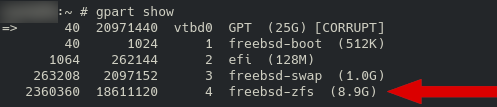
Correct the partition table (replace vtbd0 with the result of gpart show)
gpart recover /dev/vtbd0
fsck -F /dev/vtbd0

Grow the zfs root partition (replace vtbd0 with the result of gpart show, -i 4 with -i your partition number )
gpart resize -i 4 -a 4k vtbd0
Increase the zfs root size (replace vtbd0 with the result of gpart show, and 4 with your partition number )
zpool online -e $(zpool get all | cut -d ' ' -f 1 | head -n 2| tail -n 1) /dev/vtbd0p4
OpenBSD
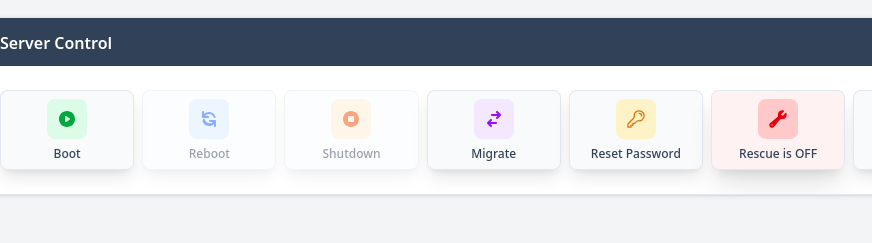
Go to the control panel and select Rescue mode
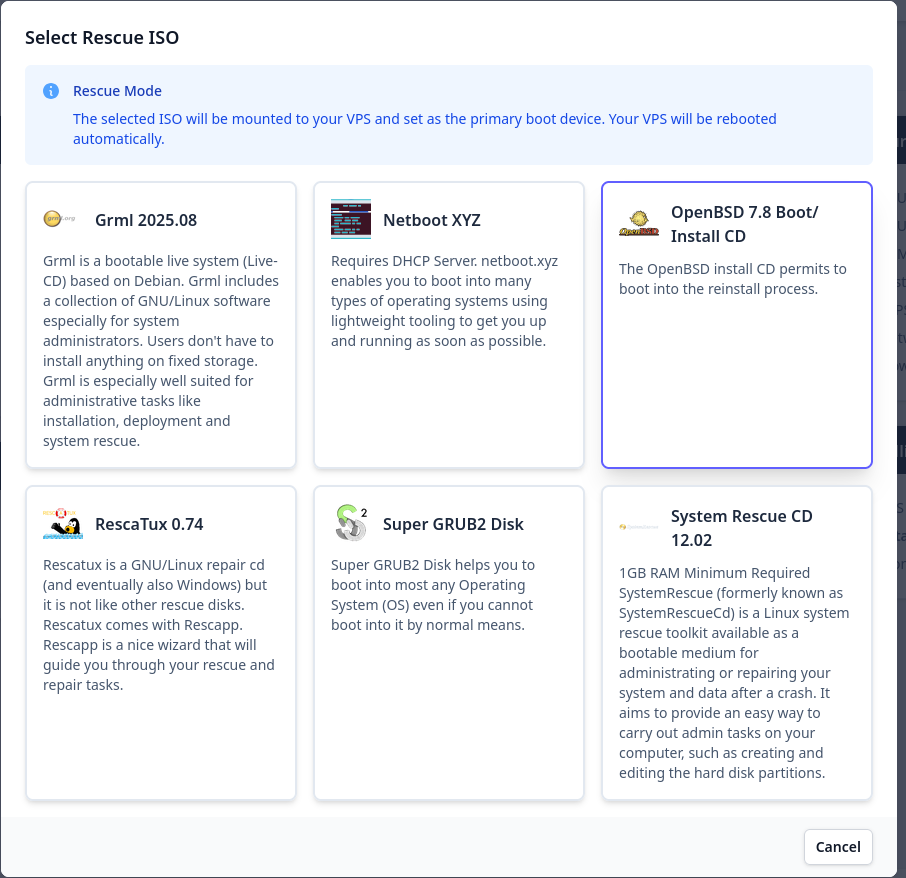
Select OpenBSD install CD
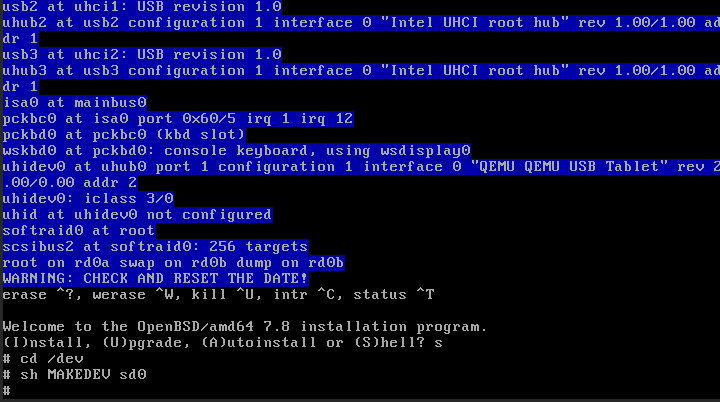
Go to the console and wait. When the prompt ask your interaction, enter the shell.
s
Create the main drive device.
cd /dev
sh MAKEDEV sd0
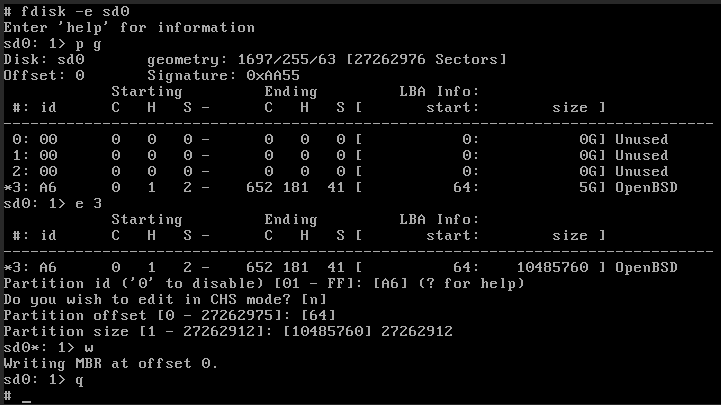
Enter the partitioning edition mode
fdisk -e sd0
enter:
e 3
Type 3 times return and manually set the maximum value written between brackets after “Partition size”
type
w
type
q
Enter the partitioning mode
Disklabel -E sd0
type
b
Press return
type
*
type
w
 Now resize the / partition:
type
Now resize the / partition:
type
c a
type
*
type
w
type
q
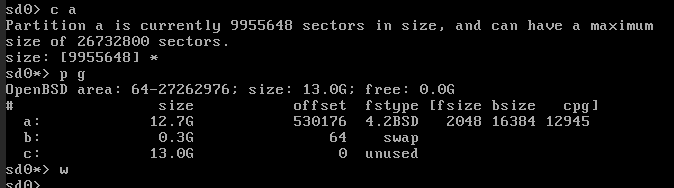 Grow the partition:
growfs sd0a
confirm if you have a backup
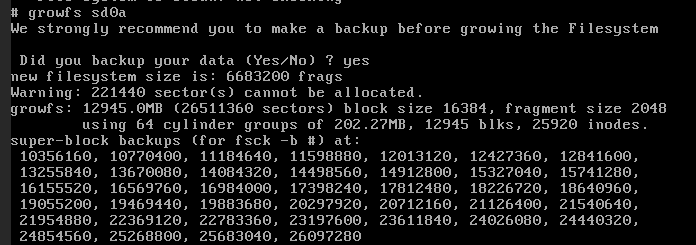 Check for bad blocks
fsck_ffs /dev/sd0a
When asked for “MARK FILE SYSTEM CLEAN?”, confirm entering
F
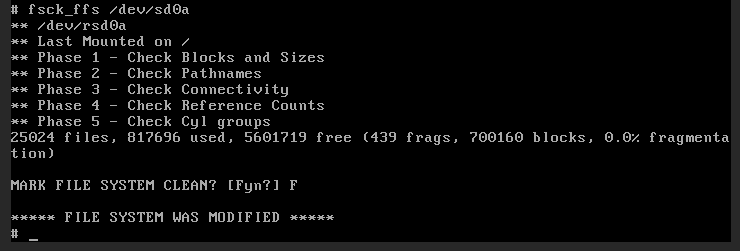
Disable the Rescue mode, the server will reboot. If needed enter the command
reboot
in the shell
